 docs/layers.ans · Layers
Stack art in layers, trace over reference images, and find your way with the minimap.
The LAYERS panel
Each layer in the sidebar shows a thumbnail, with buttons to add, duplicate, delete, move and merge.
| Key | What it does |
|---|---|
| Alt-↑ / Alt-↓ | select the layer above / below |
| Alt-Shift-N | add a layer |
| Alt-Shift-D | duplicate the layer |
| Ctrl-L | the full Layers panel |
The full Layers panel
Ctrl-L opens every layer with a large thumbnail and every layer action in one place.
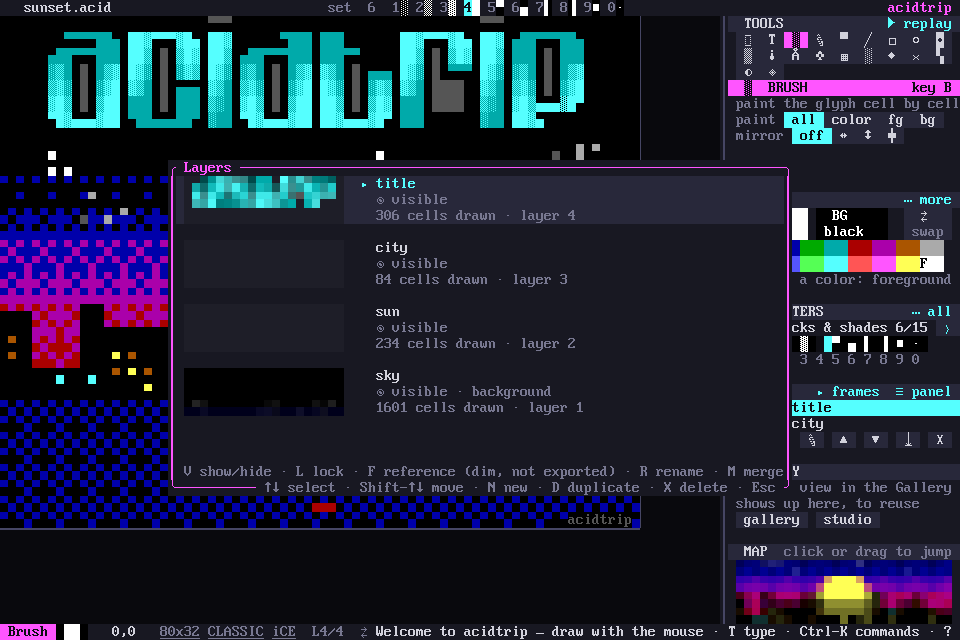
| Key | What it does |
|---|---|
| ↑ ↓ | select a layer |
| Shift-↑ Shift-↓ | move it up / down |
| ] [ | move it up / down |
| N | new layer |
| D | duplicate |
| X, Delete | delete |
| V | show / hide |
| L | lock |
| F | reference: shown dimmed, never exported |
| R | rename |
| M | merge down |
Reference layers
A reference layer is shown dimmed for tracing and never exported. Palette › Add reference image layer… imports a picture as one, and F in the Layers panel turns any layer into a reference.
Palette › Clear layer empties the current layer.
The minimap
The sidebar’s MAP shows the whole piece with your view highlighted. Click or drag it to jump, and Alt-M toggles it.
Frames each have their own layers. See Animation.