 docs/drawing.ans · Drawing and tools
Paint with the mouse or the keyboard, and every tool with its key.
With the mouse
Drag on the canvas to paint. E toggles the eraser: press it, erase, press it again to go back. Picking a tile also returns you to the brush. Right-drag, Option-drag or Ctrl-drag also erase, in terminals that pass them through. iTerm2 may keep right-click for its own menu.
Click a tool in the sidebar’s TOOLS grid, or press its key. Hover over a tool to see its name and key in the status bar. The tool’s own panel sits right under the grid, with every option as a chip.
From the keyboard
It works like ACiDDraw. The arrows move the cursor, and the number row types tiles from the active set, advancing like typing. The set is shown top-right as 1░ 2▒ 3▓ 4█ …. Shift+arrows draw a trail with the current tile. Space applies the current tool, and for shapes a second Space finishes the shape.
Home and End go to the start and end of the line, Ctrl-Home and Ctrl-End to the first and last character on it, and PageUp / PageDown move a page.
Every tool
Single-letter keys work while a drawing tool is active. While you type with the text tool they type text instead.
| Key | Tool | Key | Tool | |
|---|---|---|---|---|
| B | brush | G | fill bucket | |
| T | type text | I | eyedropper | |
| P | smart pen with brushes | F | TheDraw / FIGlet text | |
| H | half-block pixels | D | gradient fill | |
| W | pattern brush | N | stencils | |
| L R O | line, rectangle, ellipse | V | select | |
| S C E | shade, colorize, erase | M | cycle mirror mode | |
| Shift-F | photo filters | Shift-C | recolor | |
| Ctrl-G | the Art tool | Z | zoom (pixel view) | |
| Tab | cycle the tool’s option | Shift-Tab | shape look █┌╔╒╓╭ |
What each tool does
- Brush (B) paints the glyph cell by cell. paint chooses what it lays down: all (glyph and colors), color, fg or bg only.
- Text (T): click, then type. overwrite or insert, and Tab jumps to the next tab stop. Esc returns to drawing.
- Smart pen (P) draws smooth strokes and picks the best glyph for each cell, with a library of brushes. See Brushes and pen.
- Half-block pixels (H) paint two pixels per cell with ▀ and ▄, so each cell can hold two colors. pen paints, fill floods.
- Line, rectangle, ellipse (L R O): drag the shape. Rectangles and ellipses are outline or filled, and look picks how they are drawn.
- Fill bucket (G) floods an area. match decides what counts as the same area: all, char, color or bg.
- Gradient (D) drags a color ramp over an area. See Gradients.
- Eyedropper (I): click to pick up a cell’s glyph and colors. Alt-U picks up what’s under the cursor from any tool.
- Font (F) stamps big text in TheDraw and FIGlet fonts. See Fonts and stencils.
- Stencils (N) stamp a saved piece of art: transparent, opaque or under.
- Pattern brush (W) paints with a repeating tile. See Patterns.
- Shade (S) steps cells through ░▒▓█: denser or lighter on each click.
- Colorize (C) recolors the ink and keeps the glyphs.
- Erase (E) erases to transparent.
- Filters (Shift-F) and Recolor (Shift-C) change the colors of what’s there. See Filters and Recolor.
- Select (V): drag to select, then move or change it. See Blocks and selection.
The brush, pen, shapes, shade, colorize and erase tools share a mirror row: off, ↔, ↕ or ✚ for both. M cycles it. - and = make the brush smaller and bigger.
Shapes follow the tile
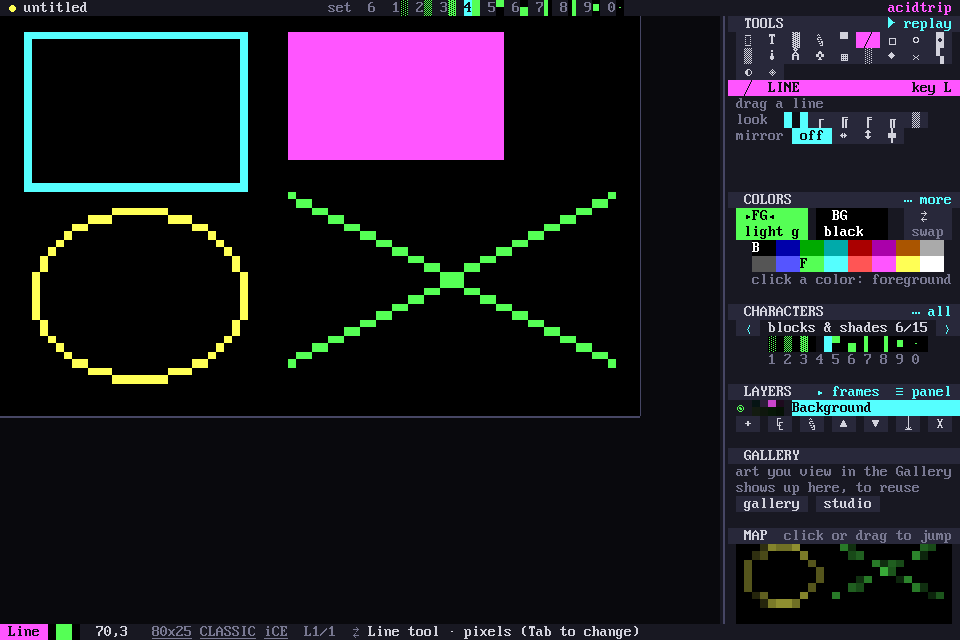
The tile you picked decides how shapes are drawn. A solid block draws lines, rectangles and ellipses at half-block resolution, so circles come out smooth. A box-drawing character draws the matching frame. Anything else is drawn with that glyph. Shift-Tab or the look chips pick the look: █ pixels, ┌ ╔ ╒ ╓ frames (plus ╭ rounded in Modern documents), or the brush’s own glyph.
View
Z toggles zoom, a pixel view where half-block drawing is exact. Alt-G toggles grid guides, Alt-W the pixel-exact preview, and Alt-Shift-W plays the piece at modem speed.