 docs/export.ans · The Export panel
Set up every file once, at every size and format, and write them all with one click.
The EXPORT panel
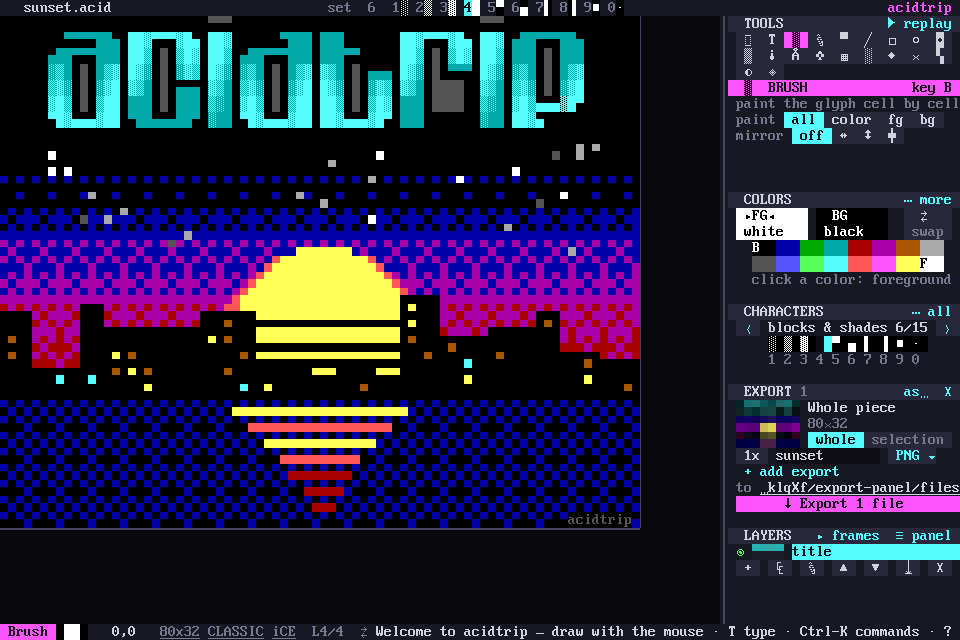
Ctrl-E, or palette › Export panel (formats, sizes, names), opens the EXPORT panel in the sidebar, like Figma’s export section. Set up the files once and they are written with one click.
What gets exported
A thumbnail shows the whole piece, or the selection if there is one. The whole / selection chips switch between them. With no selection, selection asks you to select an area first (V, then drag).
Rows
Each row is one file, with a scale chip, a file name and a format chip.
- Scale:
1x,2x,3x,4x,6xor8x, for PNG and GIF. Click for bigger, right-click for smaller. - Name and format: click either to open the row editor.
+ add exportadds a row and−removes one.
A new piece starts with one PNG row at 1x.
Names and the row editor
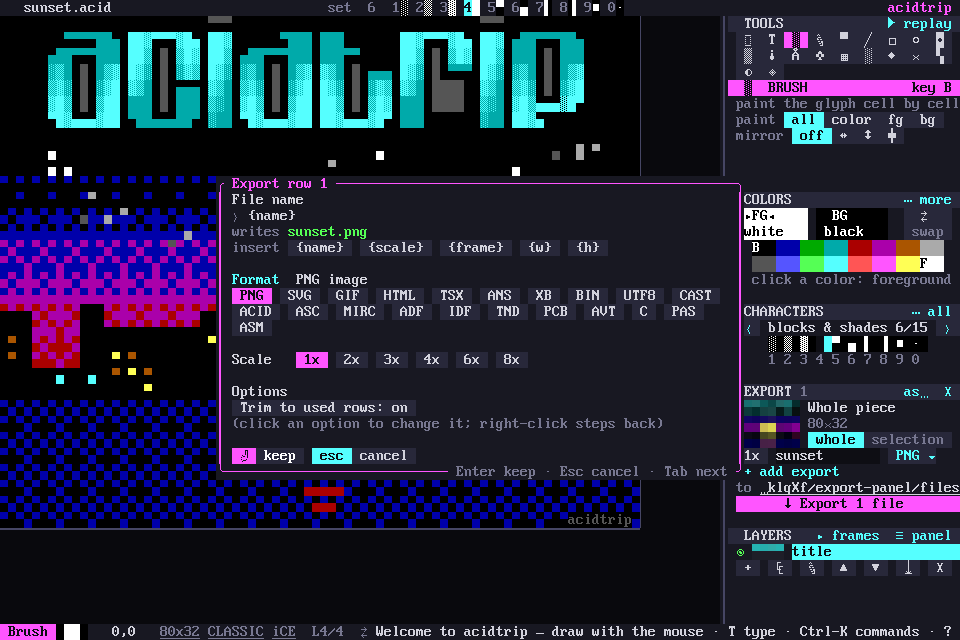
Names are patterns:
| Placeholder | Becomes |
|---|---|
{name} | the file name, else the SAUCE title |
{scale} | the row’s scale |
{frame} | the frame number, one file per frame |
{w} {h} | the size in cells |
So {name}@2x and {name}-{frame} both work. The editor also lists every format, with that format’s options.
Folder and export
- Folder: next to the file unless you click it and pick another. Right-click puts it back next to the piece.
- ↓ Export N files writes every row, replacing old files, and lists what it wrote. Alt-Shift-E (palette › Export: write every row now) does the same from anywhere.
The rows and folder are saved with the piece in .acid files. Formats with no room for them (.ans, .xb and the other art files) keep them in acidtrip’s data folder, by file, so they are back when you reopen it. For a single file, Export as… is still there: the panel’s as… button, or the palette.
An untitled piece has nowhere to export to yet, so the folder reads where you save it. Export opens Save as… first, and the files go next to the piece you save. Pick a folder first to export without saving.
See Formats for what each format writes.