 docs/getting-started.ans · Getting started
Install acidtrip, open a file, and find your way around the screen.
Install
One line installs the binary for macOS or Linux, Intel or Arm:
curl -fsSL https://raw.githubusercontent.com/jondot/acidtrip/main/install.sh | sh
It puts acidtrip in /usr/local/bin, or ~/.local/bin when that isn’t writable. Add -s -- --version v0.1.0 after sh to pick a release. The archives are also on the releases page, signed with cosign.
To build from source instead, with Rust installed:
cargo install --git https://github.com/jondot/acidtrip acidtrip
First run
acidtrip                 # new canvas
acidtrip logo.ans        # open (or create) a file
Give it any number of files and each opens in its own tab. acidtrip opens .ans .xb .bin .adf .idf .tnd .pcb .avt .asc and its own .acid files. A name that doesn’t exist yet opens as a new, empty document with that name.
The first run also writes a config file with comments, which you can edit later. See Keymaps and config.
Terminals
A terminal with truecolor and mouse input is enough: iTerm2, kitty, WezTerm, Ghostty, Alacritty, or Terminal.app with fewer key combinations. Colors always come from the document’s own VGA palette, so the art looks the same whatever your terminal theme.
Terminals that report exact mouse pixels (kitty, WezTerm, Ghostty, xterm and others) let the smart pen follow the pointer inside a cell. Terminals with graphics (iTerm2, kitty, sixel) also get a pixel-exact preview, which Alt-W toggles.
The screen
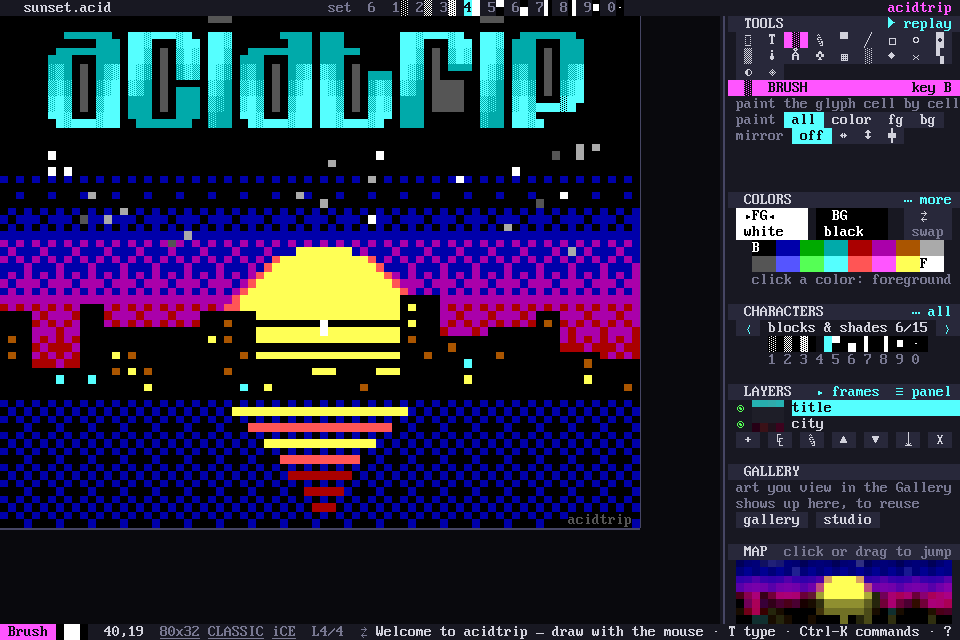
- The canvas takes the left side. Drag with the mouse to paint.
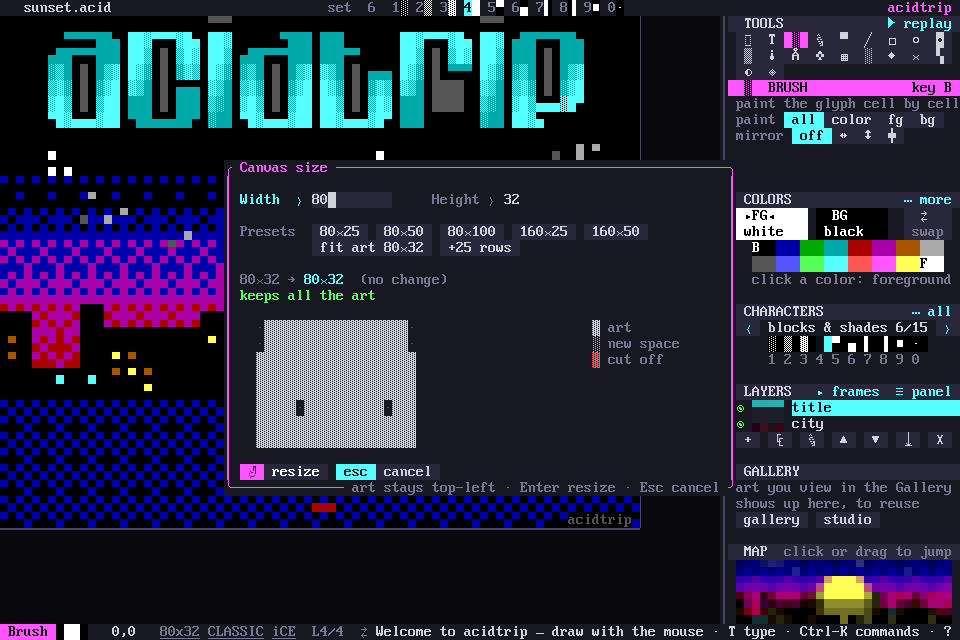
- The sidebar is a stack of panels: TOOLS, the active tool’s options, COLORS, CHARACTERS, LAYERS, GALLERY and the MAP. Every option shows all its choices as chips you click, so nothing hides behind a key. Ctrl-B hides and shows it. On a short terminal the panels that don’t fit fold to a title bar (
▸ LAYERS show). Click one to open it, and the others fold to make room. - The status bar runs along the bottom. Hover over anything, in the sidebar or the status bar, and it says what that thing does and its key.
A message too long for the status bar ends in …. Hover over it to read it whole, or click it for the message history. Palette › Message history… shows every message of the session.
The status bar is clickable too. The canvas size (80x25) opens Canvas size. CLASSIC / MODERN switches the document kind, and iCE toggles iCE colors. Ctrl-Z undoes any of them.
Everything works with one mouse button. The right button is only ever a shortcut.
Commands and keys
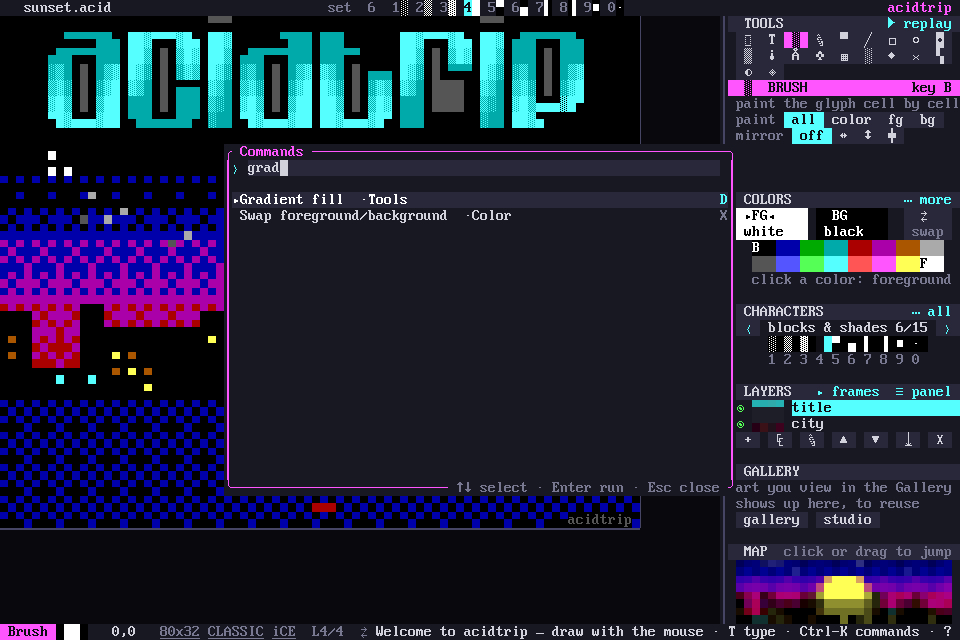
Ctrl-K (or Ctrl-P) opens the command palette. It fuzzy-searches every command in acidtrip and shows each one’s key, so it is the quickest way to find anything.
? shows the live key sheet, the keys as they are bound right now, including your own overrides. Alt-H opens it from anywhere.
Classic and Modern documents
- Classic: CP437 characters and 16 colors, saved losslessly to
.ans,.xband.bin. This is the scene’s format. - Modern: any Unicode character and 24-bit color, for SVG, HTML, React and UTF-8 output.
Click CLASSIC / MODERN in the status bar to switch, or use Convert to Modern (Unicode + RGB) and Convert to Classic (CP437 + 16 colors) in the palette. New documents are Classic, 80×25, with iCE colors on; the [new_doc] section of the config changes that.
Canvas size and SAUCE
Widths are anything you like: 80, 160 or more. Click the size in the status bar (or palette › Canvas size…) for presets, fit art, and a preview that shows in red any art a smaller size would cut off. The art stays at the top-left.
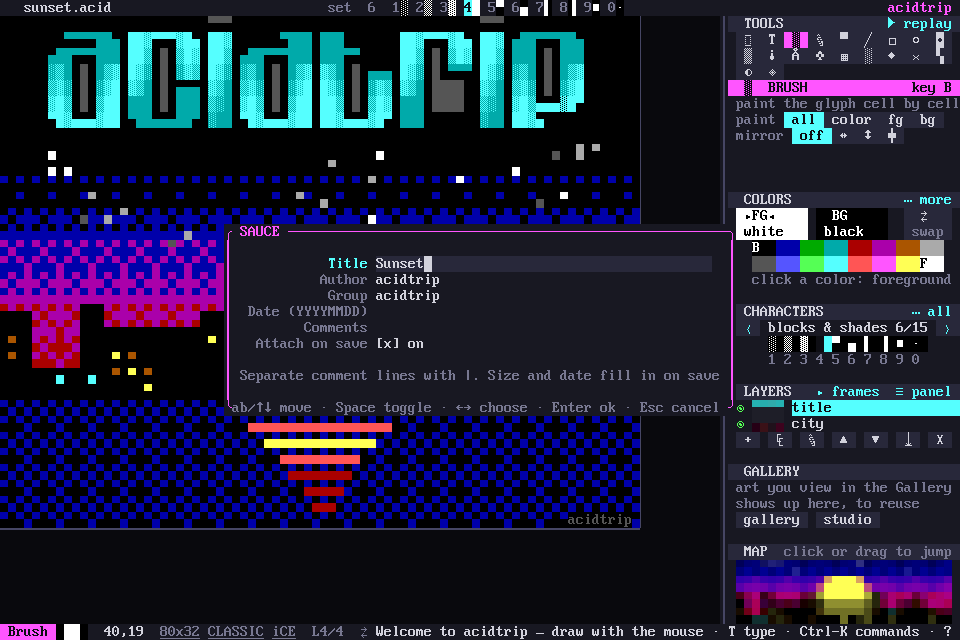
Alt-D edits the SAUCE record: title, author, group and the rest. Ctrl-D opens Document properties….