 docs/animation.ans · Animation
Give a piece frames, with onion skin, timing, and exports that play.
Frames
A piece can have frames. Click ▸ frames in the LAYERS header, or press Alt-F to add a frame straight away, and the FRAMES panel opens above the layers.
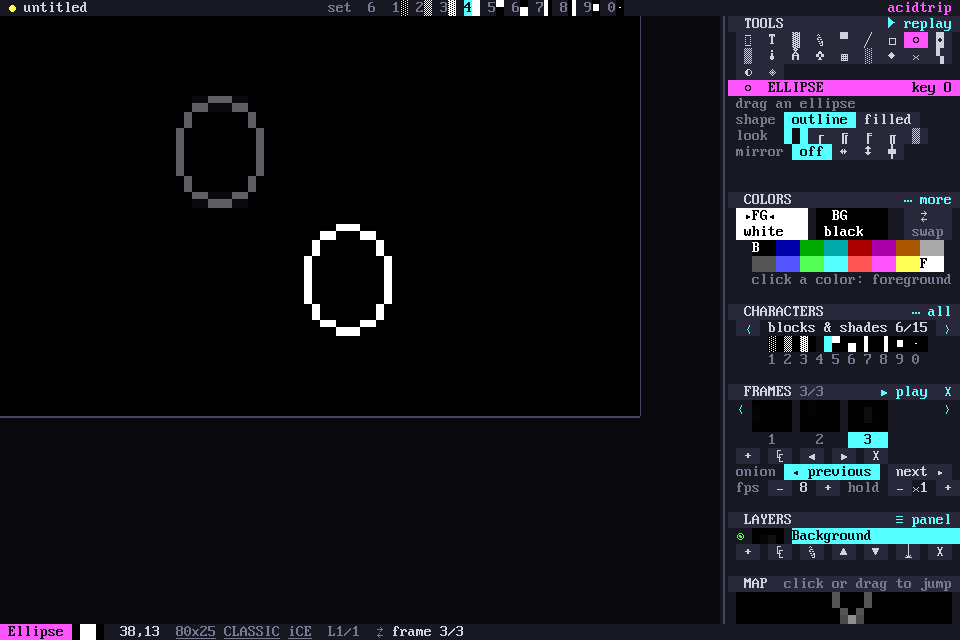
The filmstrip
The filmstrip has a thumbnail per frame, with the one you draw on lit. Click a thumbnail to go to it, or use ‹ ›, < > while a tool is active, or Alt-← Alt-→ from anywhere.
+ ⧉ ◀ ▶ ✕ add a blank frame, duplicate this one, move it earlier or later, and delete it. Alt-F adds and Alt-Shift-F duplicates.
Each frame has its own layers. Every frame operation is one undo step, and undo takes you to the frame it changes.
Onion skin
The previous frame shows dimmed wherever this one is empty, so you can trace the next pose. The next frame can show through too. Both are toggles in the panel, and palette › Onion skin: previous frame toggles the first.
Timing and playback
- fps sets the speed, 8 by default.
- hold keeps a frame on screen for more ticks.
- ▶ play (Alt-Shift-P) loops the animation on the canvas. Drawing or picking a frame stops it.
Exporting animations
Exports play the frames with their timing:
- an animated GIF
- an ANSI animation, each frame redrawn from the top-left: the classic ansimation, which you
catat a baud rate - an asciinema .cast
Save and Export have an All frames switch for ANSI and .cast; turn it off to write just the frame you are on. acidtrip opens ANSI animations back up as frames.
Replay, Draw together and .acid files keep the frames. A piece with one frame is saved exactly as before.
On the command line, a GIF of an animated piece is animated unless you ask for --gif still:
acidtrip convert walk.acid walk.gif
acidtrip convert walk.acid walk.ans            # plays with cat
acidtrip convert walk.ans walk.cast